Listing Automation
How to run the AI listing pipeline
Drop in model numbers, the AI writes the copy, results land in Airtable for review. This guide only covers operation, not the internals — six things: generating copy, getting around the Airtable base, editing/adding a prompt, syncing prompts, retiring a prompt, updating catalog data.
Generate copy
The web form's Generate tab — paste model numbers, pick a marketplace, one click.
Listing Generator
Paste model numbers, pick a marketplace, and the AI writes the listing copy. Results land in Airtable for review.
- 1Pick the right Marketplace (only
Wayfairhas a real prompt configured today — check Section 3 before generating for anything else). - 2Model Numbers — one per line, paste directly, no commas needed.
- 3Click
Generate. The page polls progress on its own; no need to watch it, it usually finishes in a few minutes. - 4Results land automatically in Airtable's Generation Items table — that's where people review, edit, and override.
Category Not Set Up — that means no prompt is configured for this category yet. Go add one in Airtable Prompt Manager (Section 3); it's not a problem with the model number itself.
Around the Airtable base
Editing prompts and reviewing copy both happen in this base — worth a quick tour before the sections that use it.
Along the top are 5 tables —
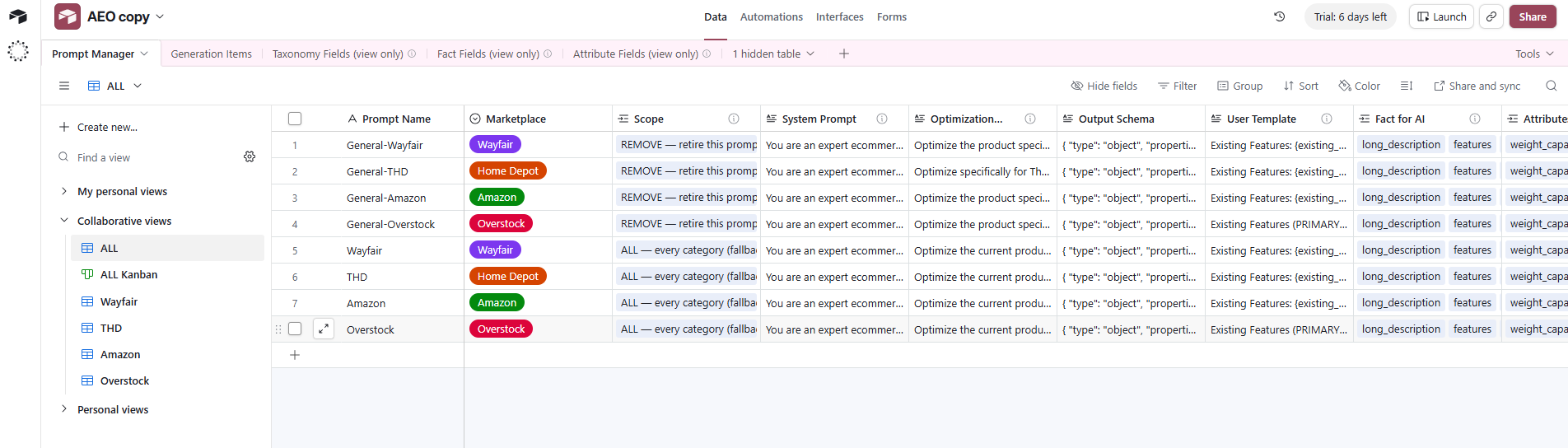
One of the two tables you actually edit — adding or editing a prompt happens here (Section 3).
The other table you edit — every AI-generated listing lands here, and this is where people review, edit, and override the copy.
The remaining three all have (view only) in their name — reference lists synced automatically from Supabase, there only so Prompt Manager's Fact for AI / Attributes for AI / Scope fields have something to pick from. Don't edit these by hand; the next sync overwrites whatever you changed.
Two more things worth knowing on the left sidebar of Generation Items —
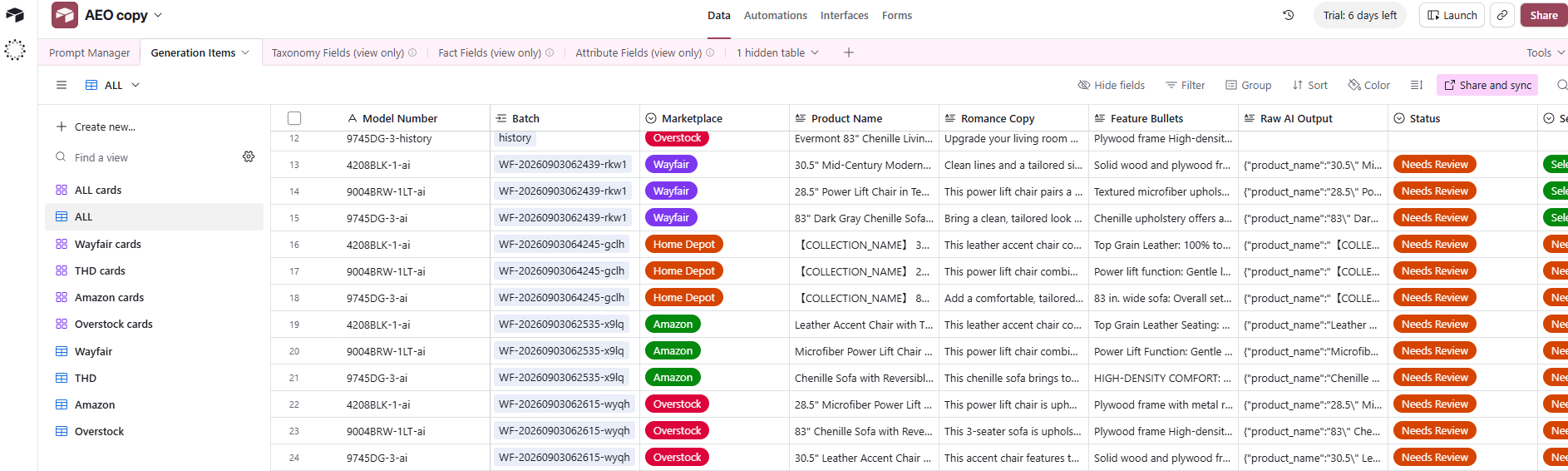
- 1The view list on the left switches what you're looking at — click
Wayfair/THD/Amazon/Overstockto see only that marketplace's rows, no manual filtering needed.
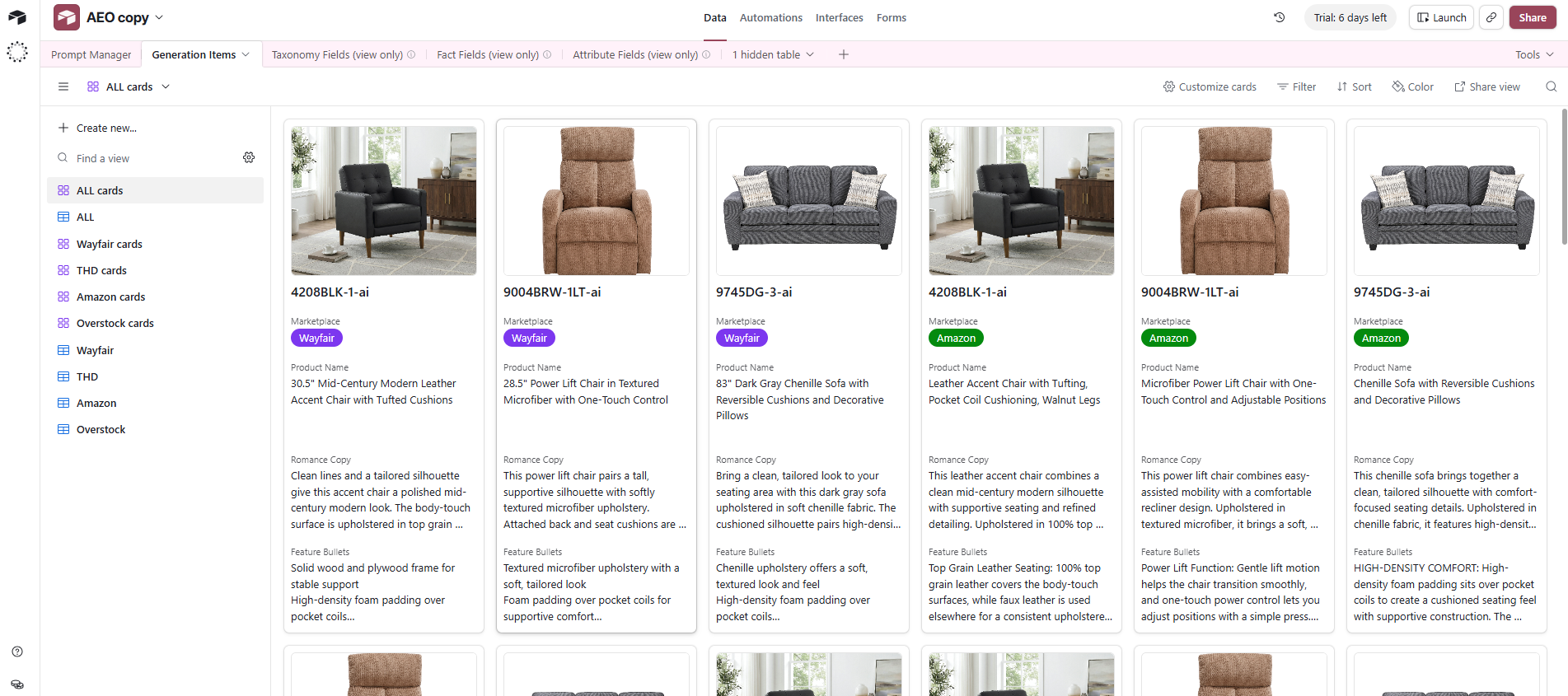
- 2For a visual once-over, switch the left sidebar to
ALL cards(or a marketplace's own... cardsview) — it turns into a card layout with the product photo next to the copy, easier for a final human check than the grid view.
Edit / add a prompt
All done in Airtable's Prompt Manager table — sync it (Section 4) once you're done. The web form's View Table button opens it directly.
ALL or a whole Category) — and edit the fields on that copy. It's harder to miss a field or get the format wrong than building one from nothing.
Create or edit a row, filling in these fields in order —
Just a label for the row — this is what you see in the list, it isn't sent anywhere.
The core instructions for the AI: role, task, hard rules.
Which product fields the AI is allowed to see — pick from a list, not typed by hand, so picking wrong isn't possible.
Fine to leave blank — it auto-builds a simple default template from Fact for AI.
Which OpenAI model this prompt calls.
Which categories this prompt covers. Pick a specific category (e.g. Seating | Accent Chairs), or pick ALL — every category (fallback) as the catch-all.
Ticked = publish this row. Clears itself automatically once it succeeds — no need to untick it.
Once published, go to Section 4 and click this button on the web form — that's what actually makes it live.
Sync prompts
Editing a prompt in Airtable doesn't take effect until someone syncs it.
Listing Generator
Paste model numbers, pick a marketplace, and the AI writes the listing copy. Results land in Airtable for review.
- 1After editing something in Airtable (whether or not
Publishis ticked), first set the Marketplace dropdown here to match. - 2Click
Sync Prompts. It only touches prompts for the selected marketplace — nothing else moves. - 3The line under the button is the result:
promptCode: publish vNmeans it actually published;refreshmeans that row wasn't ticked for Publish and only its display got refreshed. - 4A failure retries once automatically; if it still fails, click
Sync Promptsagain — the error text usually names the field that's wrong.
Publish in Airtable does nothing by itself — until someone clicks Sync Prompts, it just sits there waiting. This button is currently the only trigger.
Retire a prompt
Taking a prompt down for good, with no new version published — also done in Airtable's Prompt Manager table.
- 1Find the row you want to retire in Prompt Manager.
- 2Switch its Scope to the
REMOVE — retire this prompt (no new version)row. - 3Tick Publish.
- 4Go to Section 4, pick the right Marketplace, and click
Sync Prompts— the retire doesn't take effect until this runs.
REMOVE row, put the real Scope back, then publish and sync again.
Update catalog data
Only needed when product facts are missing or stale — grab the latest export, then upload it.
First, get the latest file from the Homelegance dashboard —
the .xlsx from the website dashboard. Reads the "Catalog" sheet (required), plus "Bundle" and "Image Link" if present.
- 1In the Homelegance dashboard: Item › Product Downloads › click
Product Sheet Downloadto get the latest export. - 2On the web form's Upload Catalog tab, click
Choose Fileand pick that file, thenRead file— this only parses it in the browser, nothing is written yet. - 3Check the row count shown below, and whether a
Bundle/Image Linksheet was found, then clickImport all rows. - 4For a large file, try
Try 25 rows firston a small batch before running the full one.