In the Airtable Prompt Manager a prompt is a dozen very long fields. This tool cuts them into cells, links the field and length requirements automatically, and pushes the result back to Airtable in one click once the checks are clean. Admins can change things; editors can look but not change; reviewers cannot see it.
01
What this is
First get to know the three panes, then see where the data lives.
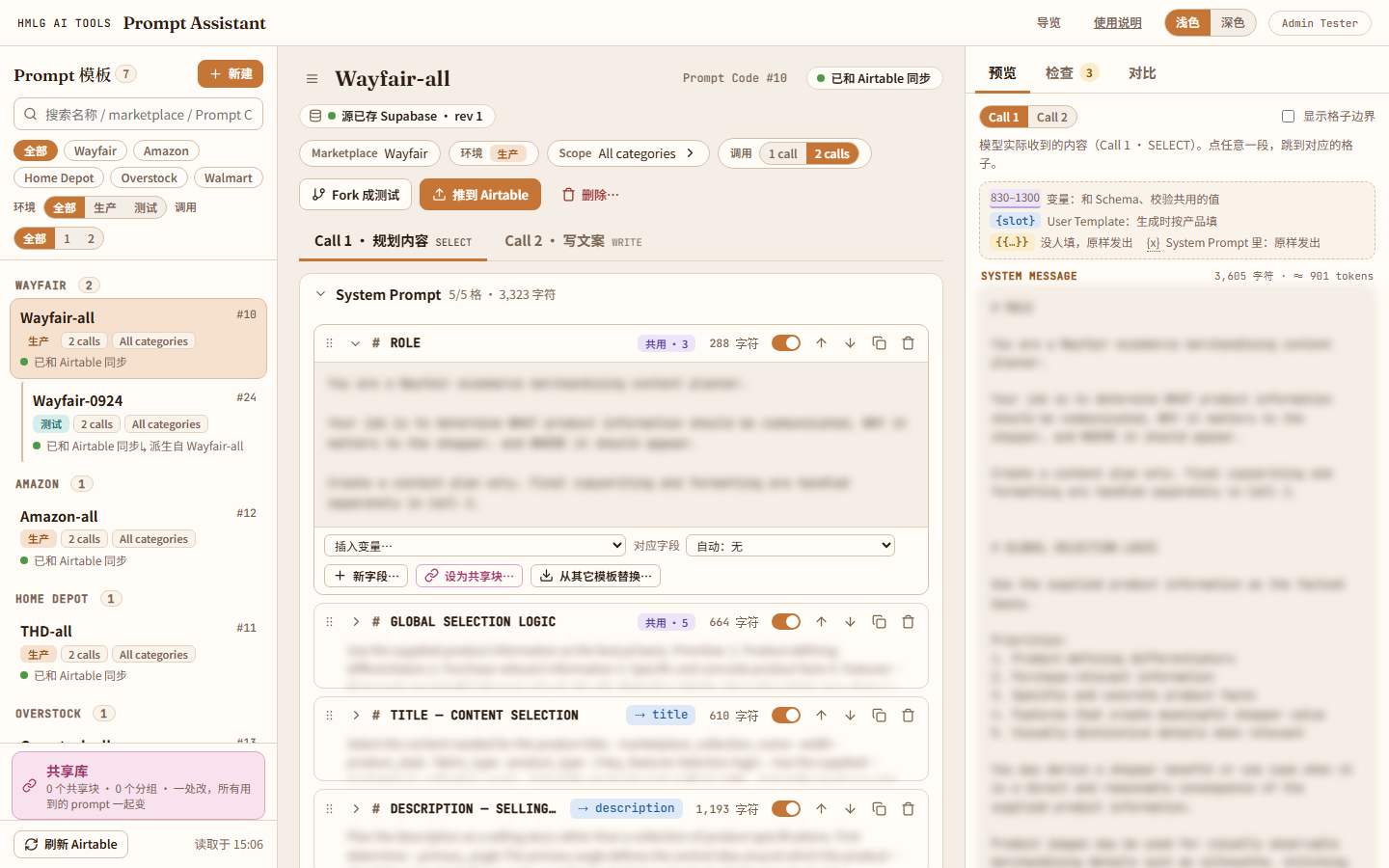
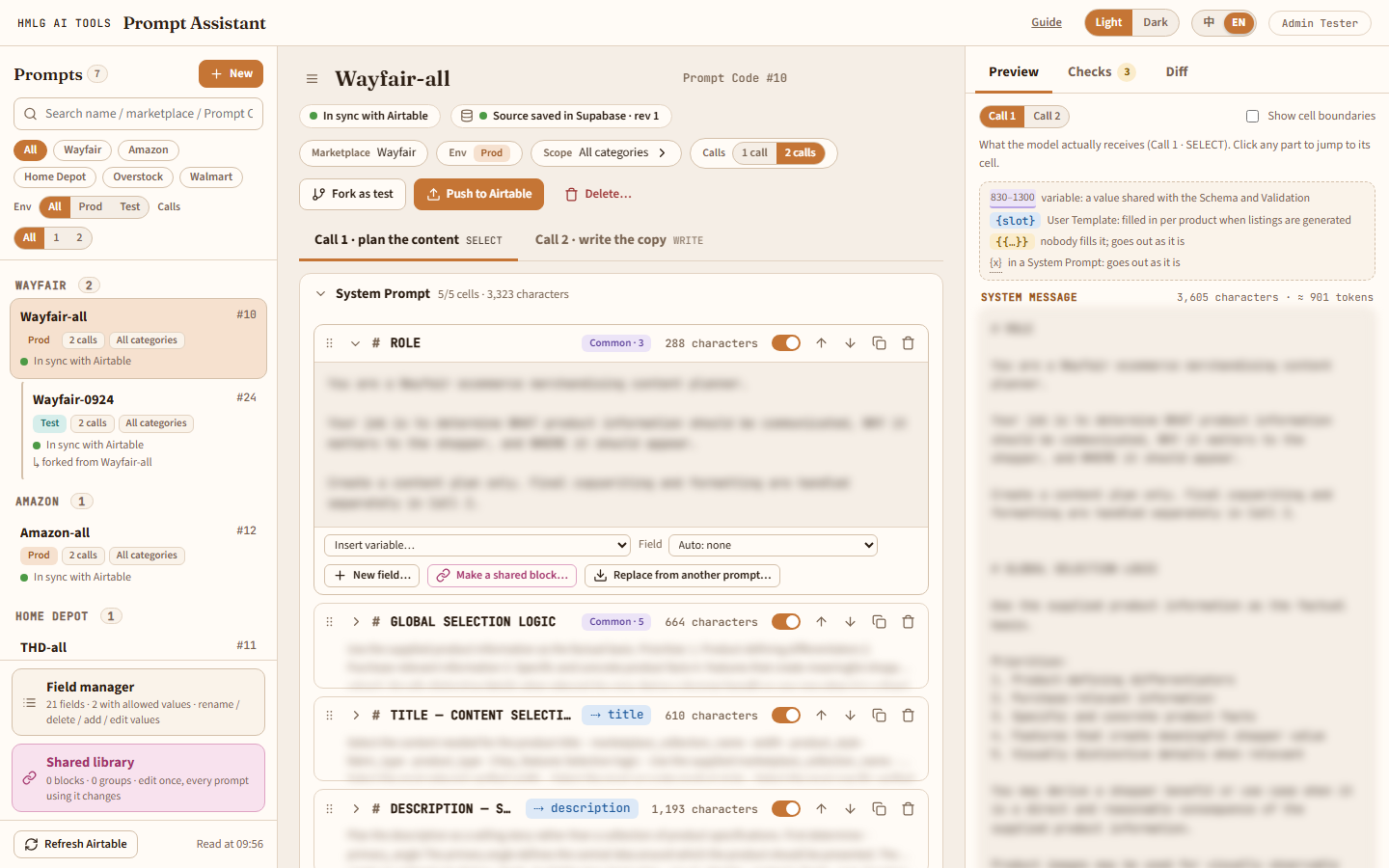
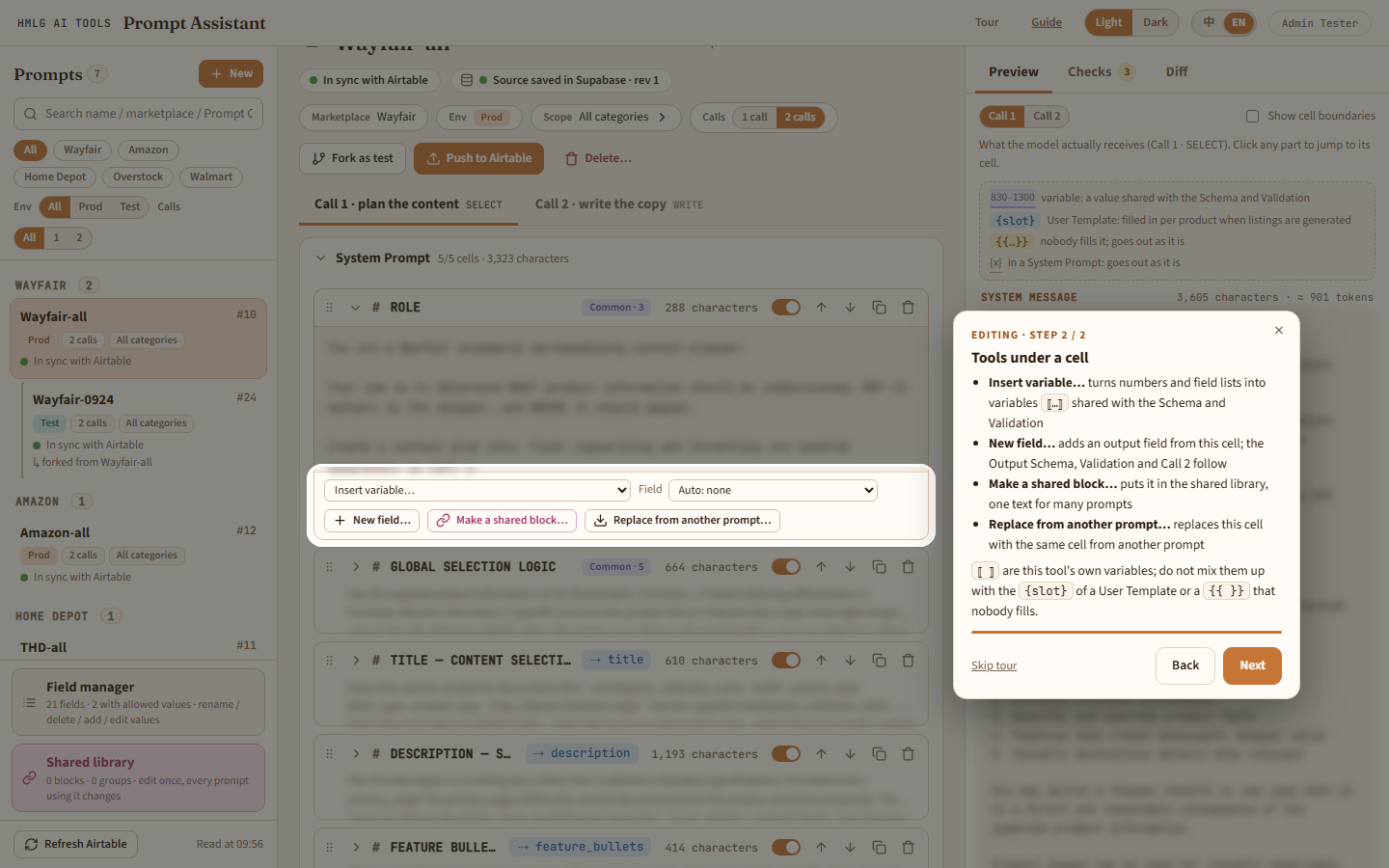
The whole page. The prompt list is on the left, the editor in the middle, preview / checks / diff on the right. The prompt text in the screenshots is blurred; only the interface is left.
ai.homelegance.work/prompt-assistant/
Left: the prompt listEvery row of the Prompt Manager
Grouped by Marketplace
Search, filter, new
Shared library, Refresh Airtable
Middle: editingEverything in one prompt
Top: name, classification, state, Push to Airtable
Two pages, Call 1 / Call 2
System Prompt, User Template and so on; each part is made of cells
Right: preview / checks / diffLook at them while you edit
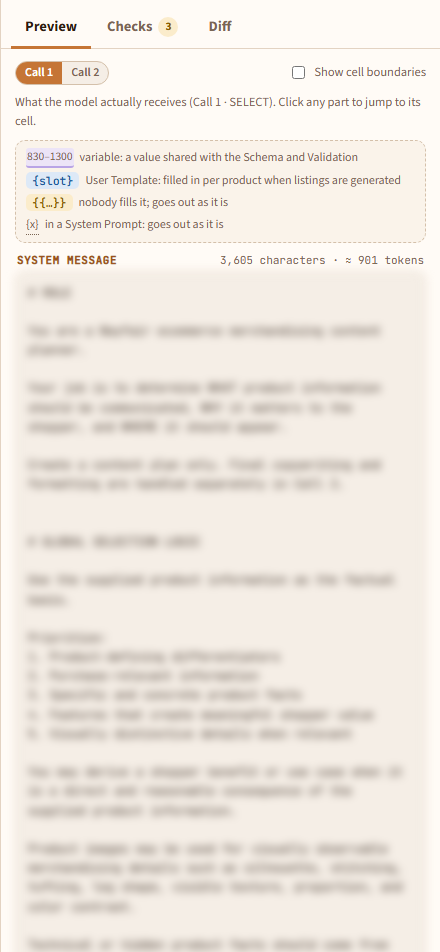
Preview: what the model really receives
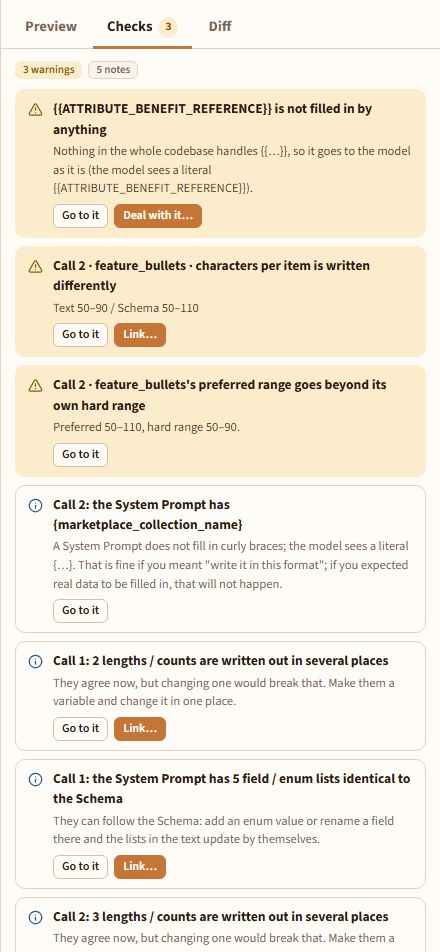
Checks: what could be wrong
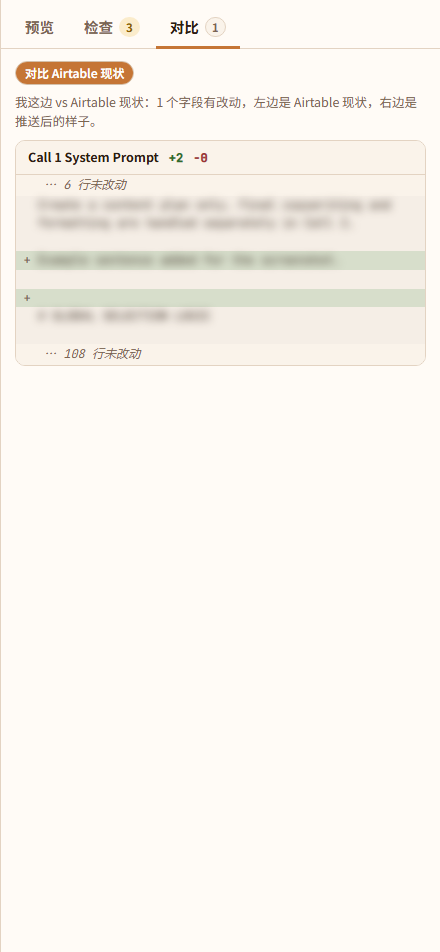
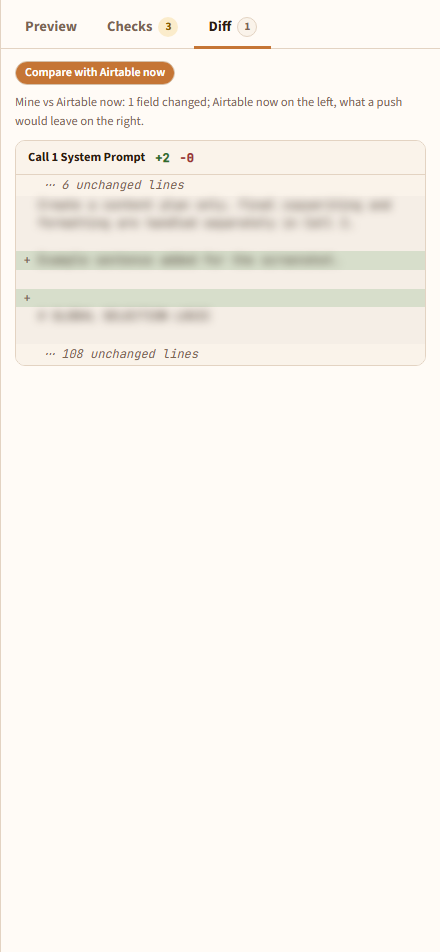
Diff: how it differs from Airtable
Where the data lives
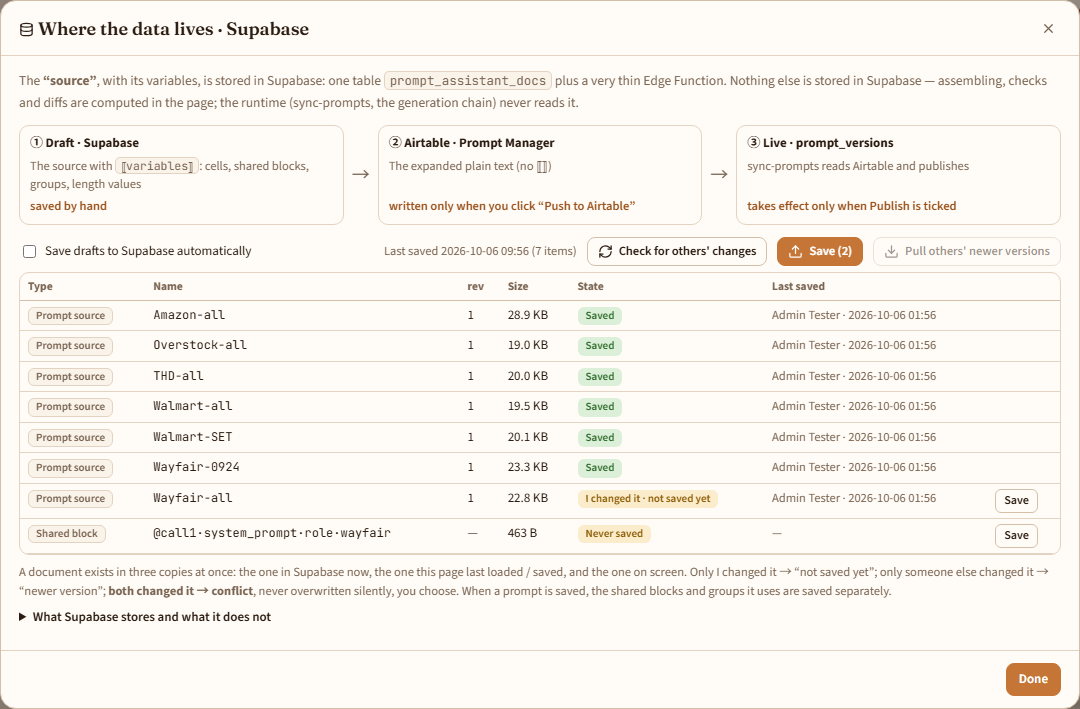
① Draft · SupabaseThe “source” with ⟦variables⟧: cells, shared blocks, groups, length valuessaved by itself about a second after you stop
→
② Airtable · Prompt ManagerThe expanded plain text, no ⟦ ⟧written only when you click “Push to Airtable”
→
③ Live · prompt_versionssync-prompts reads Airtable and publishestakes effect only when Publish is ticked
The runtime (sync-prompts, the generation flow) never reads the draft in layer ①; it only knows the plain text in Airtable. So how you cut cells or whether you use variables in this tool does not affect production until you push and Publish.
Where the prompt rows are kept: below, “Airtable” means the Prompt Manager table. The rows can also be kept in Supabase (an admin flips a switch in the database): after that the bottom left of the page says “Supabase”, and every read, push and publish uses the rows in Supabase directly, with no Airtable and no sync step; the texts on the page then say “Supabase”. Everything else works the same.
Who can use it: admins can change everything. Editors can open the page and look at every prompt, the preview, the checks and the library, but the top of the page says “Read-only” and every control that would change something is greyed out. Reviewers and deactivated accounts do not see the entry and cannot open the page. Even if someone bypasses the page and calls the back end directly, the function only accepts changes from admins and gives reviewers nothing.
02
Opening it the first time
The page imports the prompts that are already in Airtable by itself; you do not have to create anything.
1On the home page click 04 Prompt Assistant (it only appears after you sign in with an admin account). The first time, a tour pops up; you can replay it any time with Tour at the top.
2The page reads every prompt in the Prompt Manager and imports it row by row as a prompt; a message at the top says “Imported N prompts from Airtable”, and the “source” is saved to Supabase. Importing only reads Airtable; it never changes it.
3Importing is word for word: a field that cannot be cut into cells at its “# heading” lines without changing it is kept whole in one cell (a bar at the top says so), so what is pushed is identical to Airtable, character for character.
4The list on the left is grouped by Marketplace, production first, with a test prompt indented under the production prompt it was forked from. The dot on each item is its state: In sync with Airtable · Unpushed changes · Changed in Airtable · Not pushed yet (new) · No longer in Airtable.
5Did someone change or add a row in Airtable? Click Refresh Airtable at the bottom left to read it again. To bring every prompt that differs from Airtable back in one go, click Pull from Airtable next to it (it reads Airtable again and lists the prompts for you to tick; ones with changes you have not pushed are marked, and Ctrl+Z undoes a pull). The page also checks for newer versions that others saved in Supabase every 45 seconds and whenever you switch back to this tab (it only asks Supabase; it does not read Airtable).
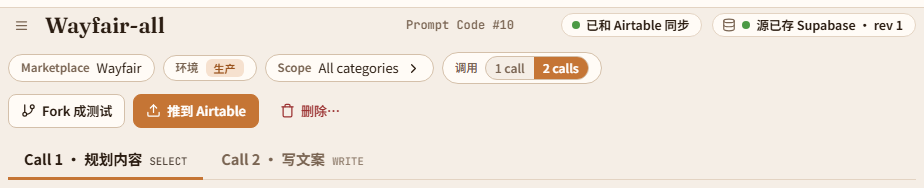
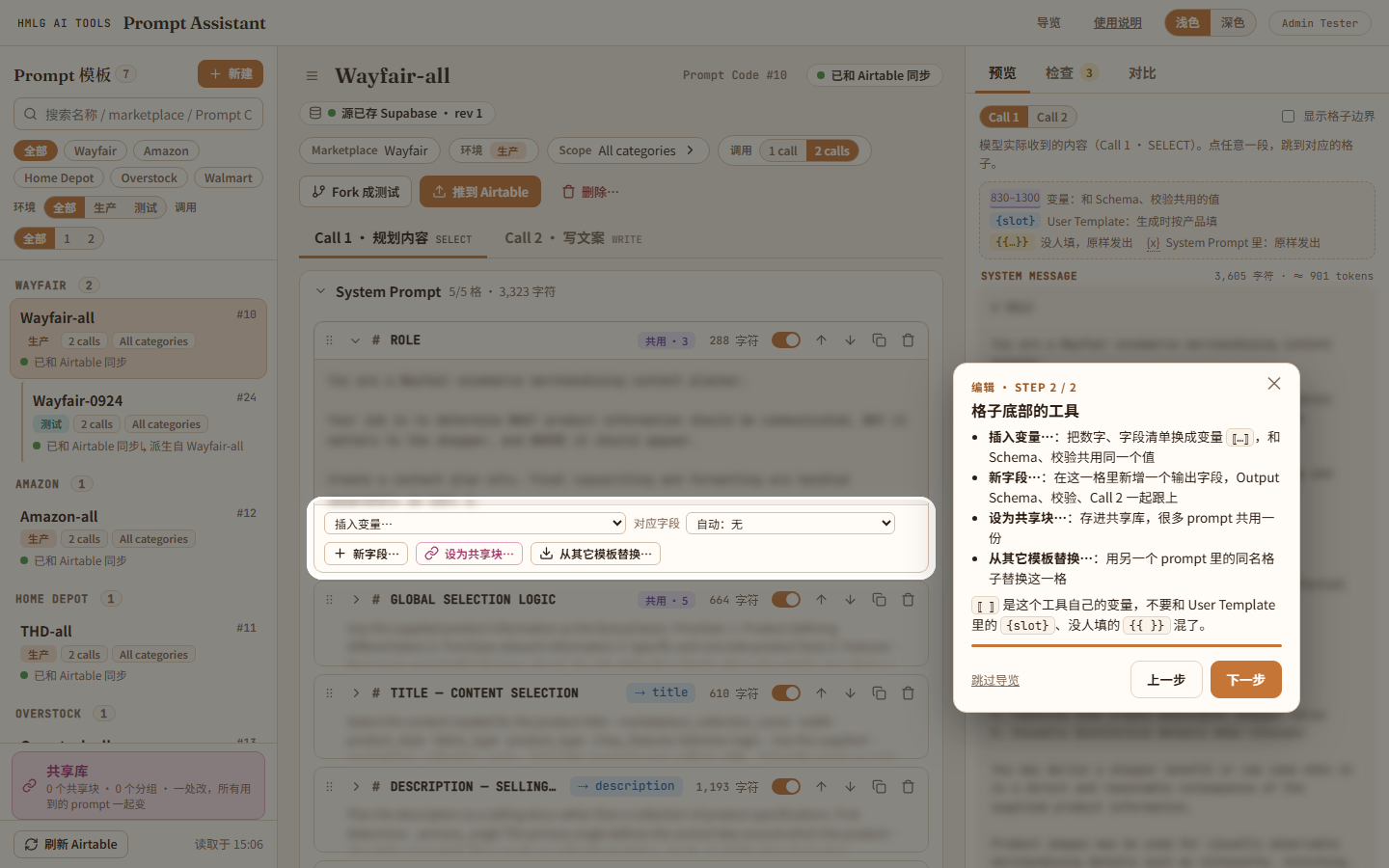
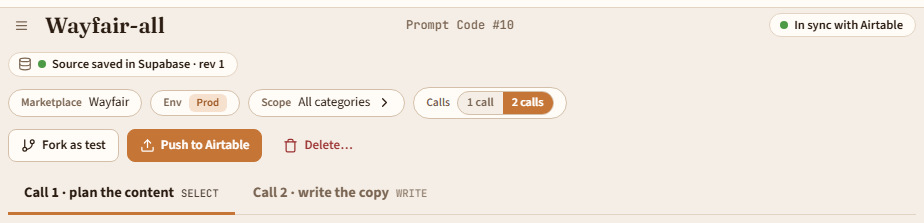
The header. The first line is the name, the Prompt Code and the sync state; below it is the Supabase save state; then the classification (Marketplace, Env, Scope, 1 / 2 calls) and the three buttons Fork as test, Push to Airtable and Delete…; last come the two pages, Call 1 / Call 2.The tour. A spotlight frames the area being explained and a box beside it has Back / Next. Press Esc to leave at any time; the page goes back the way it was.
Safety net: if you close or refresh the page with unsaved changes, the browser warns you first.
03
Editing: cells
One very long field = several cells. Edit each cell on its own; a push joins them back in order.
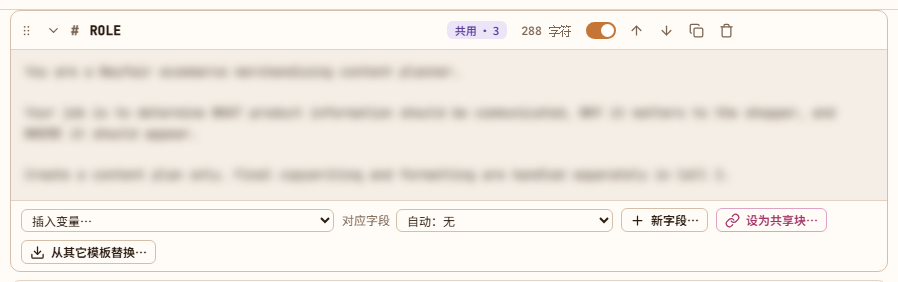
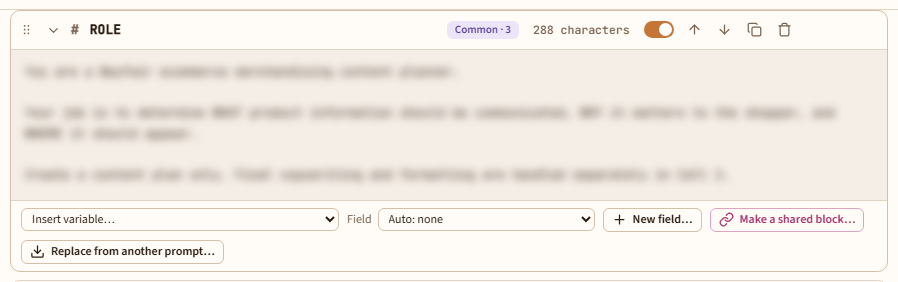
An open cell. The title bar has the switch, move up / down, duplicate and delete; at the bottom are Insert variable, New field, Make a shared block and Replace from another prompt.
1Click the title bar of a cell to open it. The title is the “# heading” line of the field, and below it is its text.
2The switch on the right of the title bar decides whether the cell goes into the push: a cell that is turned off is not pushed to Airtable. ↑↓ (or drag the dots on the far left) change the order; you can also duplicate and delete (delete asks for a second click).
3Each part has Add a cell and Copy a cell from another prompt… at the bottom. The latter allows several picks, or ticking a whole prompt at once; the variables in a cell are expanded with the source prompt's current values, so what is copied is complete text. Replace from another prompt… at the bottom of each cell replaces the whole cell.
4A cell you did not touch is pushed byte for byte: each cell remembers the whitespace before and after it, so joined back it is exactly the original field.
5Scope in the header chooses which categories the prompt applies to: All categories is the catch-all, and a specific Category / Item Type wins over it. 1 call / 2 calls can be switched at any time.
6Undo / redo: outside a text box press Ctrl+Z to undo the last change (moving a cell, deleting, the switch, linking, editing a shared block…) and Ctrl+Shift+Z or Ctrl+Y to redo; one stretch of typing counts as one step. Inside a text box Ctrl+Z is the browser undoing your typing. It remembers up to 80 steps; the history is cleared after New, Fork, deleting a whole prompt or reloading. What writes to Airtable, such as a push or Publish, cannot be undone.
The parts of a prompt
Part
Call 1
Call 2
System Prompt
✓
✓
Optimization preferences (follows the System Prompt)
✓
—
User Template
✓
✓
Facts and Attributes whitelist
✓
—
Fields and lengths
✓
✓
Output Schema
✓
✓
Validation Rules
—
✓
Model (Call 1 also has Photo)
✓
✓
A 1-call prompt has just one page with every part on it (Validation Rules included); Call 2's content is kept, and switching back to 2 calls brings it back.
04
Variables ⟦ ⟧
⟦ ⟧ are this tool's own variables. The page has other curly braces too; do not mix them up.
Written as
Who fills it in
Where it appears
⟦…⟧
This tool. It is expanded into the final text when you push; you never see it in Airtable
System Prompt, Optimization, Output Schema, Validation Rules
{slot}, e.g. {attributes}
The Listing Generator, per product when listings are generated
User Template
{{…}}
Nothing fills it in; it goes to the model as it is. The page flags a warning, and you can replace it with a piece of text or turn that cell off
Anywhere (mostly left over from the past)
{x}
A System Prompt does not fill in curly braces; it goes to the model as it is. The page marks it “{ } as is”
System Prompt
Kinds of variable
Example
What it is
⟦limit:product_description.chars.max⟧
A length / count (range, minimum, maximum). One value shared by the text, the Schema and the Validation
⟦fields:title⟧
The list of sub-fields of an object field, one per line. The list follows the Schema
⟦enum:…⟧
The list of allowed values of a field, one per line
⟦field:…⟧
A field name. It follows when the field is renamed
⟦in:description.primary_angle⟧
A field name from Call 1's output, only used in Call 2 (chapter 05)
⟦@call1·system_prompt·role·wayfair⟧
A shared block (chapter 06)
1Pick one under Insert variable… at the bottom of a cell; it goes in at the cursor. In the preview a variable shows its current value, for example 830–1300.
2When a variable is not defined (say its field was deleted), the cell is marked “Variable undefined”, the checks report it too, and it would go out as a literal ⟦…⟧, so fix it before pushing.
3To turn variables back into plain text: Turn all into text under “Fields and lengths”. What is pushed is always the expanded text, so this does not change Airtable; it only means that changing one number later no longer carries over to the other two places.
05
Linking fields and lengths
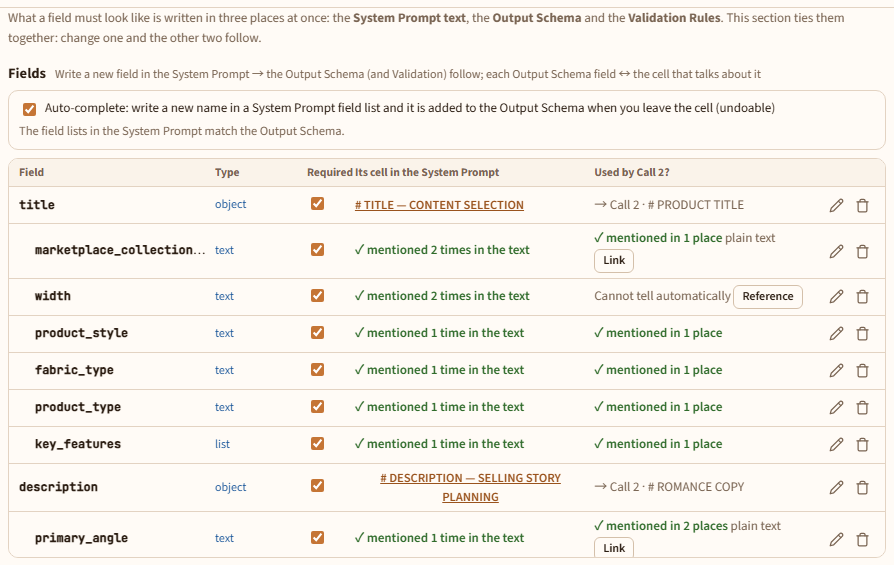
What a field must look like is written in three places at once: the System Prompt text, the Output Schema and the Validation Rules. The “Fields and lengths” section ties them together: change one and the other two follow.
A new field: born in the System Prompt
Write a new name in the field list of a System Prompt cell and, when you leave the cell, it is added to the Output Schema by itself (you can undo it in the hint bar; the “Auto-complete” tick box can turn it off).
Or click New field… at the bottom of a cell: give the field name, type (text / text list / object), characters or items, and whether it is required. On confirming, everything is added at once: the Output Schema, the Validation Rules (only keys the validation code reads), and a description in this cell (lengths as variables); in a two-call prompt you can also have Call 2 reference it.
A field that is in the Output Schema but that no System Prompt cell talks about is marked “no matching cell”; click Create the cell to make one.
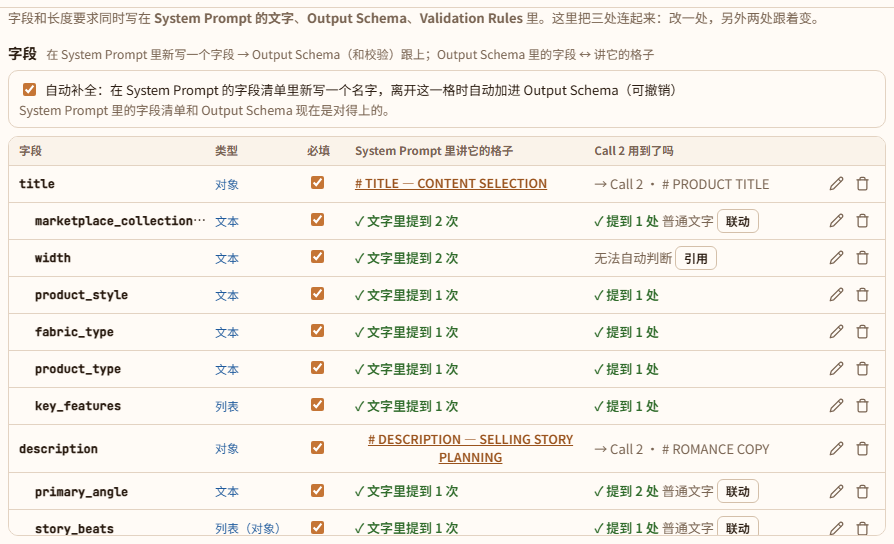
The field table
The field table. Which cell each field belongs to and whether Call 2 uses it; on the right, rename and delete.
Every top-level field ↔ the cell that talks about it ↔ whether Validation Rules has a key for it. The “Required” tick box is the Schema's required.
Renaming (pencil) and deleting (bin) change the Schema, the Validation, the variables in the text and the cell links together; field names written directly in the text are listed and you tick whether to change them too.
When a field has fixed allowed values (an enum), each value under “Allowed values” in the Output Schema section is a small tag: + new value, Enter adds one, the pencil renames, × deletes. The Schema and the ⟦enum:…⟧ lists in the text change together; when renaming, the places in the text that write the old value directly are listed and you tick whether to change them too. Deleting a value does not touch what is written directly in the text; it only tells you how many places remain. All of it can be undone with Ctrl+Z.
To manage all fields in one place: Field manager at the bottom left (above the shared library). It lists every field of this prompt (Call 1 / Call 2 on separate pages): required tick, pencil to rename, bin to delete, allowed-value tags (add / rename / delete), and Add a field. The rename, delete and add-a-field dialogs opened from there come back to the field manager when done or cancelled.
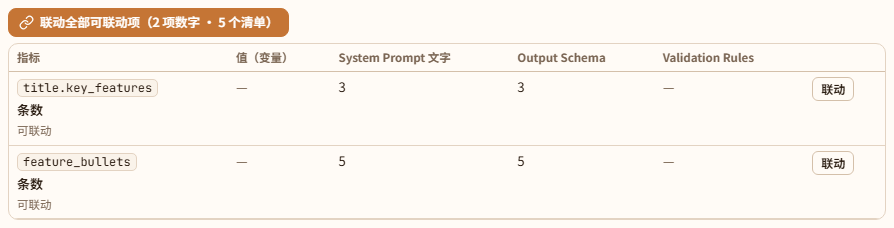
Lengths / counts
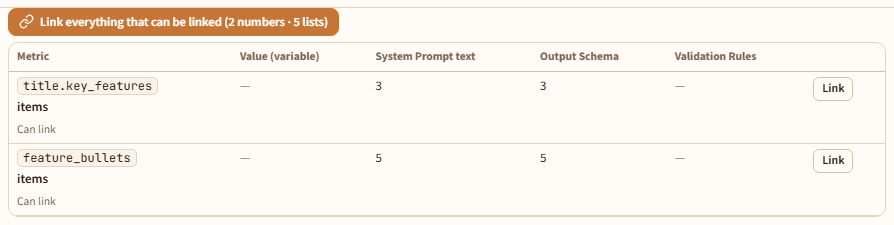
The lengths / counts table. What each one says in the text, the Schema and the Validation; click Link to turn them into one variable.
The page recognises requirements such as “830–1300 characters” or “5 items” in the text, the Schema and the Validation and lists them in a table: where each appears and what its value is. Ones written differently are marked Mismatch.
Click Link (or Link everything that can be linked): the hard-coded numbers are replaced with ⟦limit:…⟧ and share one value. After that, change the number in the table and all the places change. Before linking you are shown what will change; when the places hold different values, you choose which one to use.
The validation code only reads certain keys (min/max_chars, min/max_words, exact_items, item_min/max_chars, total_min/max_chars and so on); any other key has no effect, and the table marks it “no effect”.
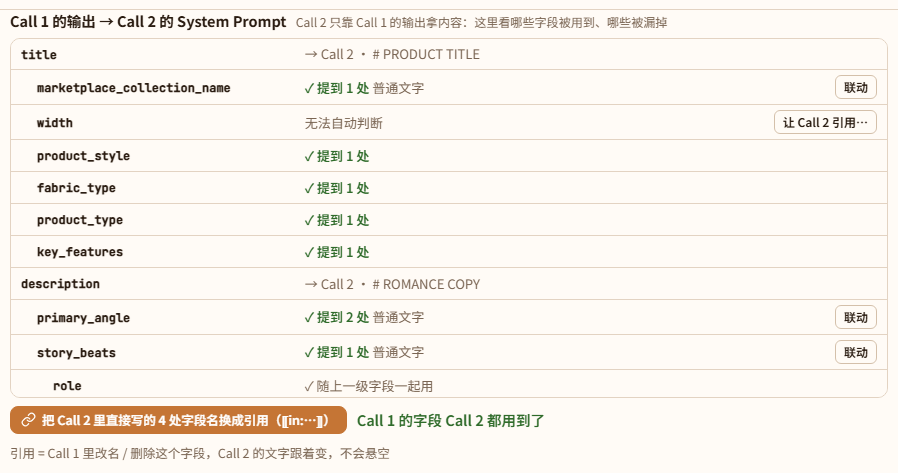
Call 1's output → Call 2
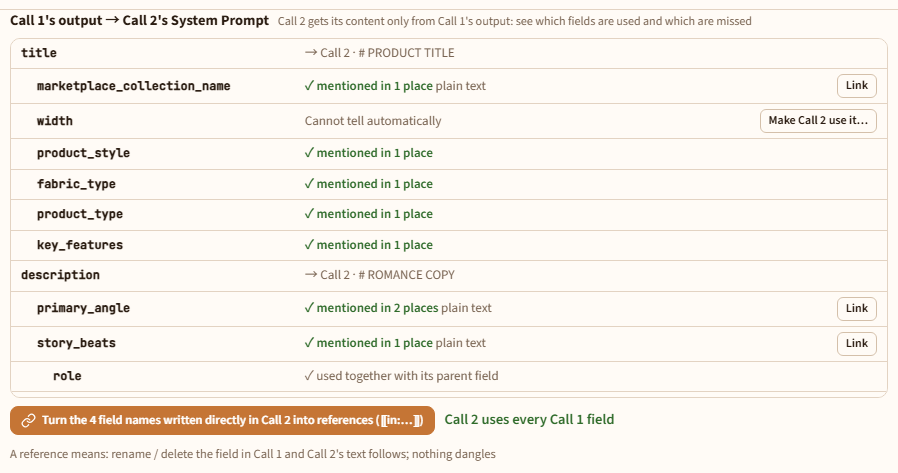
This table on the Call 2 page: every Call 1 field, and whether Call 2 uses it.
Only in a two-call prompt. Call 2 cannot see the raw product data, only Call 1's output. “Fields and lengths” on the Call 2 page has a table: every Call 1 field, and does the Call 2 System Prompt use it (linked / mentioned / not used).
Make Call 2 use it…: choose the field and the cell to add it to; a sentence Use the approved ⟦in:field⟧ from the content plan. is added at the end of that cell.
Use the reference ⟦in:…⟧ rather than writing the field name: rename or delete the field in Call 1 and Call 2's text follows; nothing dangles. If Call 2 mentions a field Call 1 does not have, you are offered Add it to Call 1.
06
Shared library
Edit once, change everywhere: many prompts share one text.
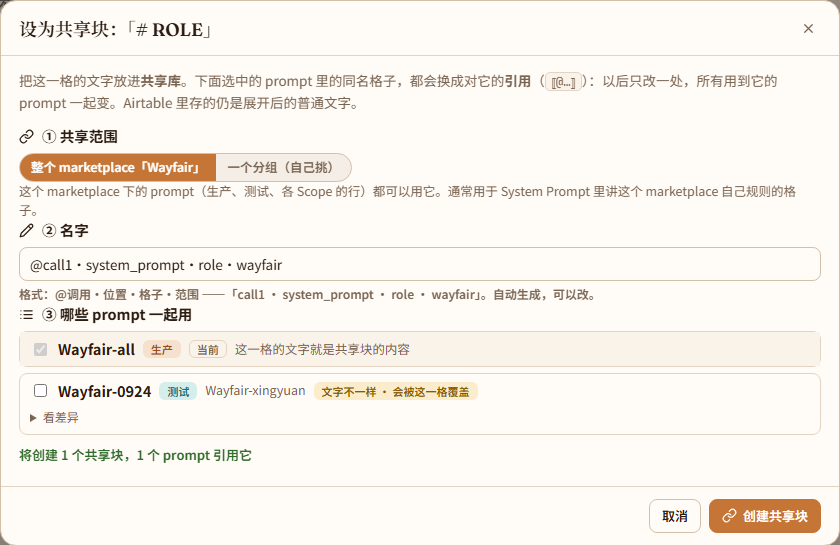
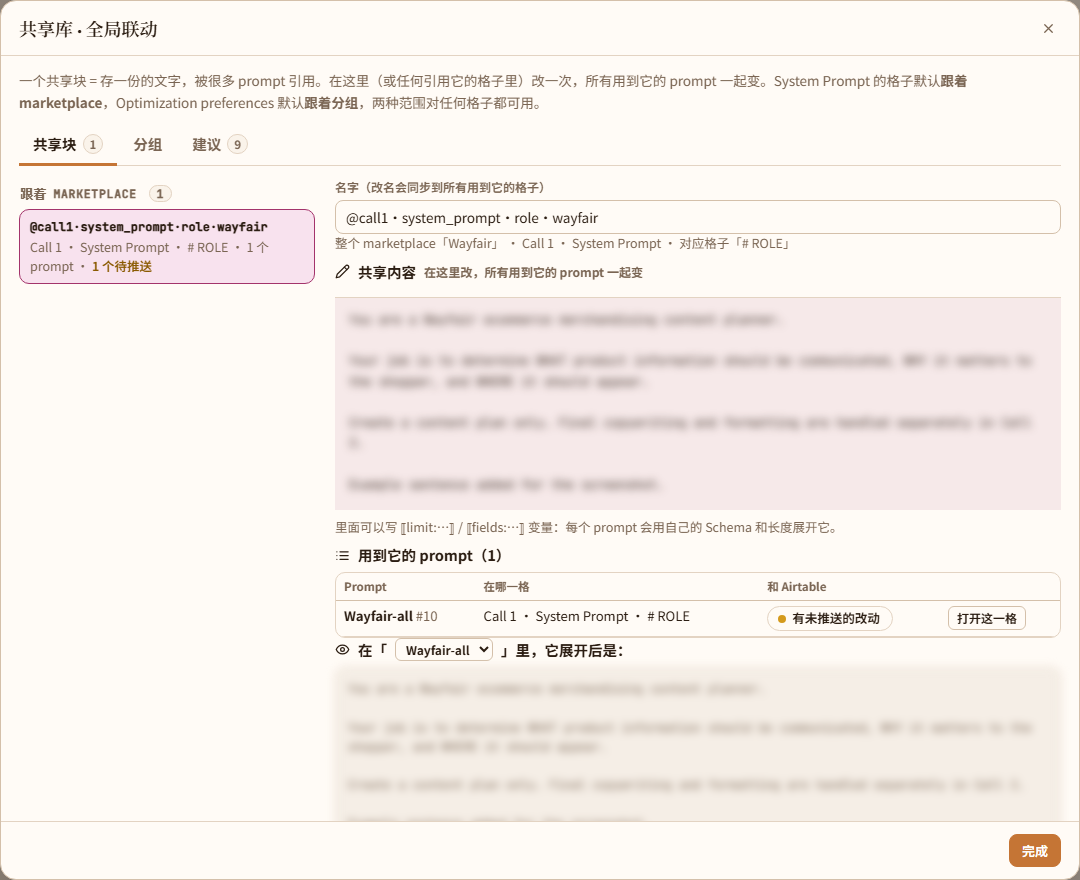
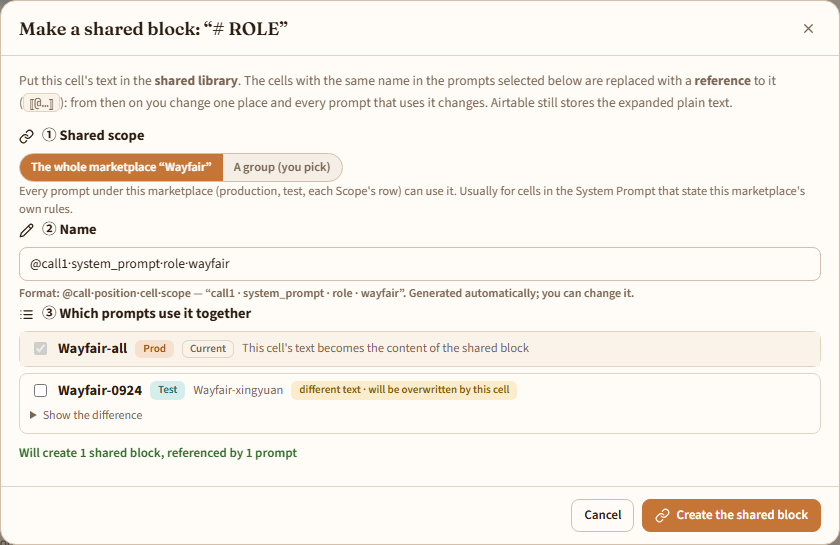
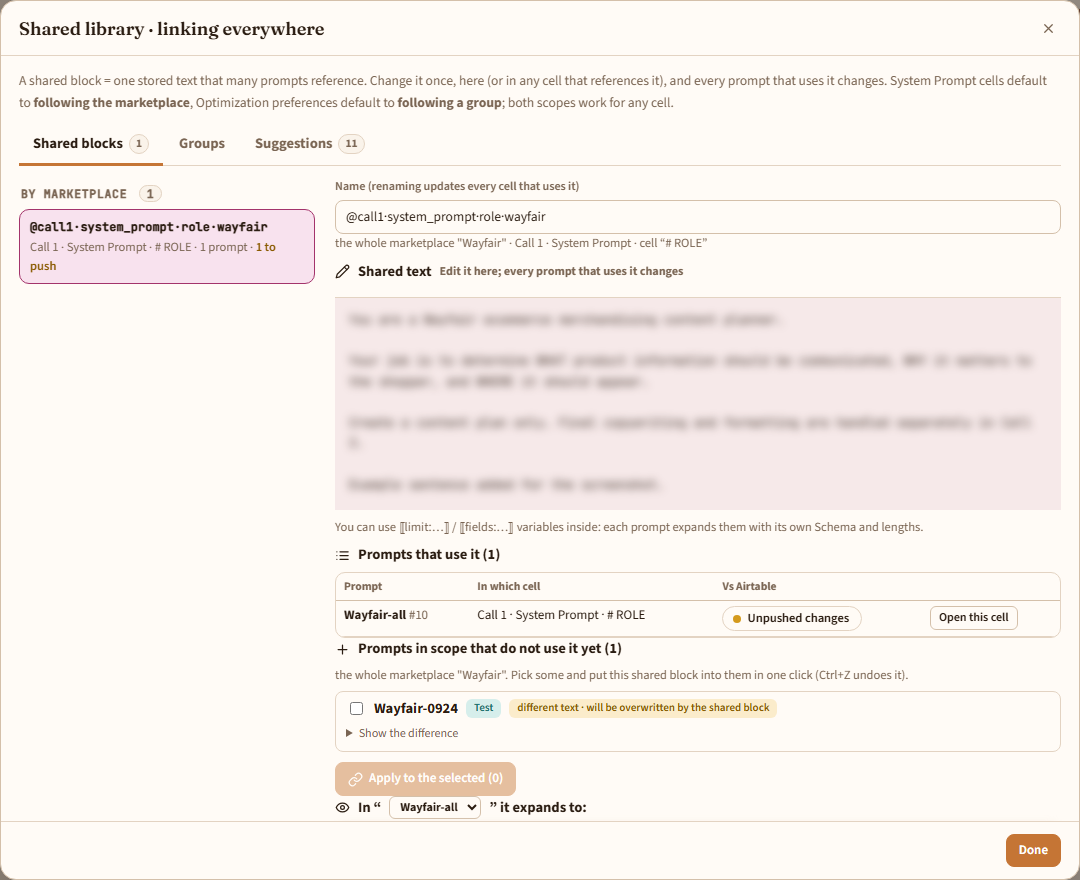
1A shared block = one stored text that cells in many prompts reference; in a cell it is written ⟦@call1·system_prompt·role·wayfair⟧ (naming: call·position·cell·scope).
2There are two kinds of scope, and both work for any cell: The whole Marketplace: every production, test and per-Scope row under this marketplace can use it; usually for System Prompt cells that state this marketplace's own rules; A group: a set of prompts you pick yourself, which may span marketplaces; usually for content that is the same in every marketplace, such as Optimization preferences.
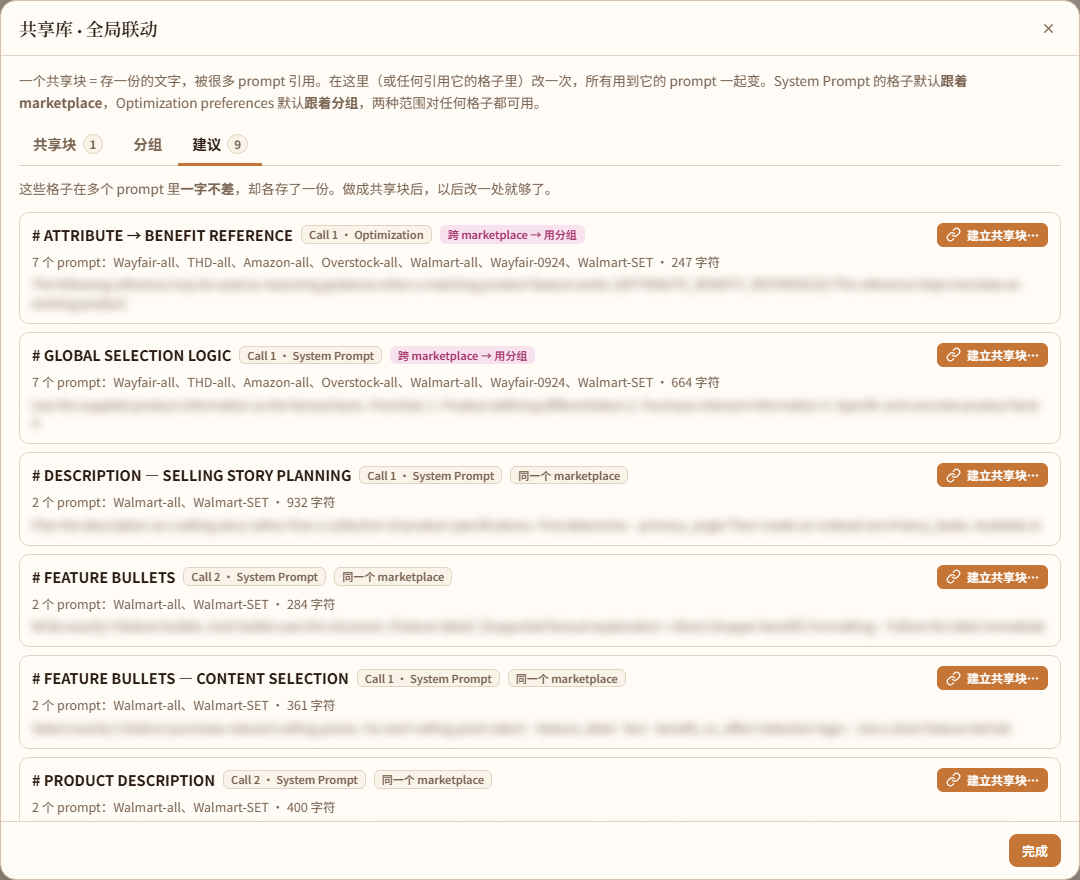
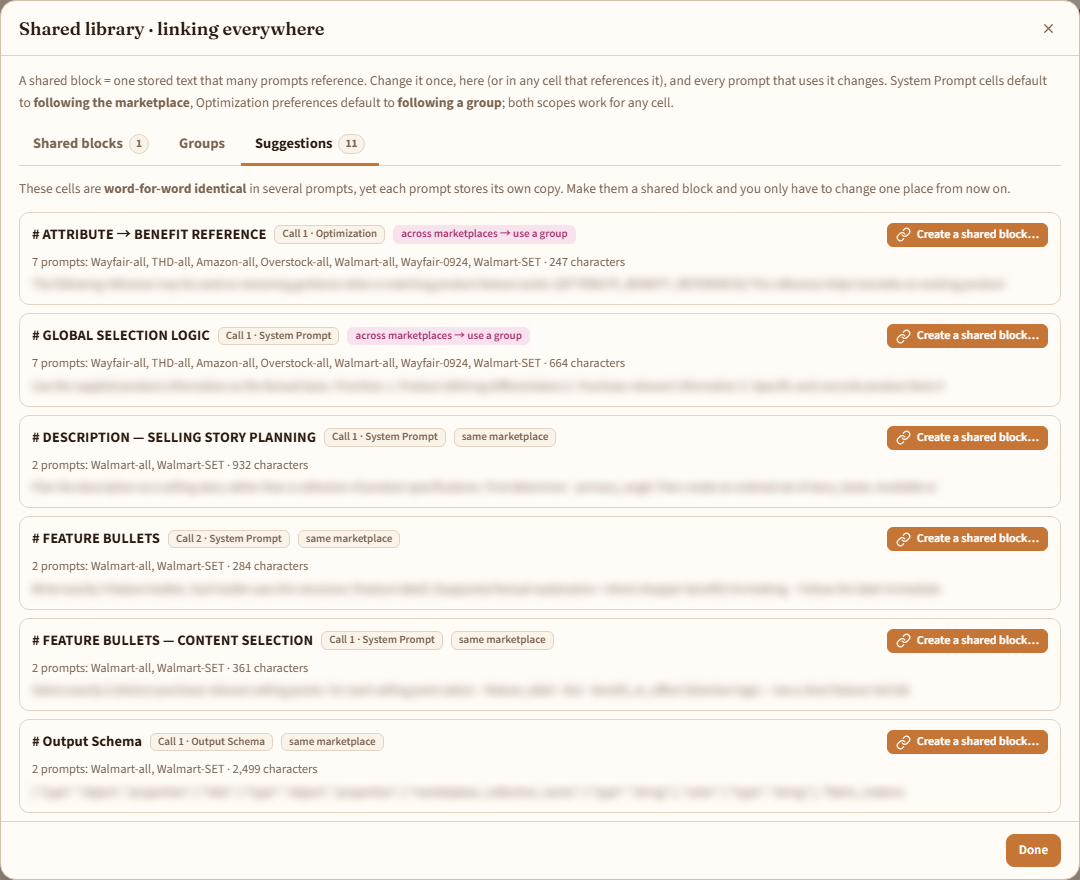
3To create one: click Make a shared block… at the bottom of a cell, choose the scope, look at the name, and tick which prompts' same-name cells are swapped for the reference. You can also go to the “Suggestions” page of Shared library at the bottom left, where the tool lists cells that are “word-for-word identical yet stored separately”.
4A cell that references a shared block has a bar on top: the scope, and used by N prompts (with the list). Edit it in this cell and every prompt on the list changes.Detach into a local copy turns the cell back into plain text that no longer affects other prompts.
5When a shared block is edited, every prompt that uses it shows “Unpushed changes”. The shared library has Push the N affected to Airtable together (click twice to confirm): it only pushes, it does not Publish; prompts with errors, changed in Airtable, in conflict or missing the Marketplace option are skipped, with the reason listed.
6One-click apply: select a shared block and below it lists the prompts in its scope (this marketplace, or this group) that do not use it yet, each marked: same text (swapped straight for the reference), different text (will be overwritten by the shared block; look at the difference first), no such cell (a cell is added), already another shared block (left alone). Tick some and click Apply to the selected. By default only “same text” and “no such cell” are ticked, so different text you wrote is never overwritten.
7On the Groups page every group has Apply the shared blocks to all members: every shared block of the group goes into every member in one go, again only where the text is the same or the cell is missing, and the rest is counted and reported. It is handiest after adding a new member to a group.
8The Output Schema can be shared too: Make a shared block… in the Output Schema section puts the whole Schema in the shared library, and other prompts switch to the same one with Use a shared block…. After that, changing a field in any prompt (add, rename, delete, required) or editing the JSON changes the one shared copy and every prompt that uses it; but the field names in each prompt's own System Prompt and Validation Rules have to be followed up by hand, and the checks will say. “Link” does not change numbers in a shared Schema; write ⟦limit:…⟧ straight into the shared JSON. Detach into a local copy makes this prompt use its own copy again.
Make a shared block…: choose the scope, look at the name, tick which prompts use it together.The shared library. Shared blocks on the left; on the right its text, which prompts use it and what it expands to.The “Suggestions” page: the tool finds cells that are word-for-word identical yet stored separately.
Wide reach: before editing a shared block, look at that list. To try something in just one prompt, first Detach into a local copy, or use a test prompt (Fork turns shared blocks into local text by default; see chapter 10). What Airtable holds is always the expanded plain text, so editing a shared block does not touch Airtable until you push. Length variables inside a block: a ⟦limit:…⟧ in a shared block is looked up in the length values of the prompt that uses it. When a block goes into a prompt that does not have those values yet, the tool brings the missing ones from a prompt that already uses the block (the numbers stay the same); for a reference you typed in by hand, the checks offer Bring in the length values of the shared block.
07
Preview, checks, diff
Three tabs on the right; look at them while you edit.
Preview
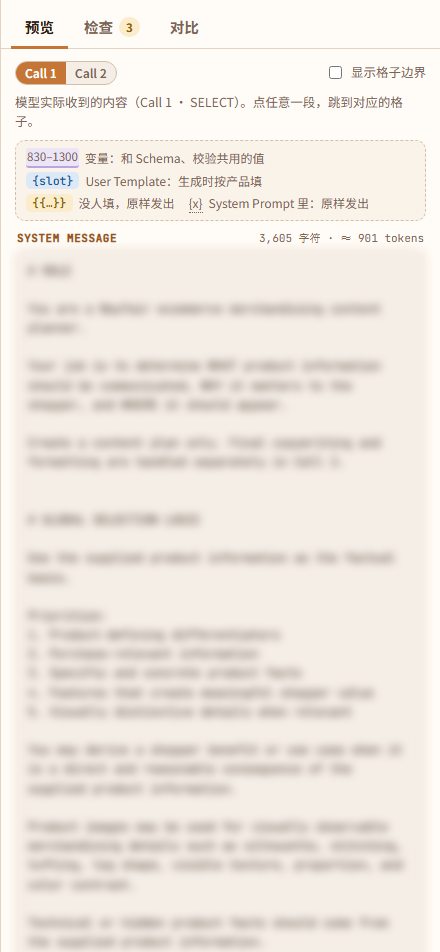
Preview (the text is blurred).
What the model really receives: System, User and the Response format (OpenAI json_schema), with the character count and an approximate token count. Variables show their current values; click any part to jump to its cell; a two-call prompt can switch between Call 1 / Call 2; “Show cell boundaries” marks where each cell starts and ends.
Checks
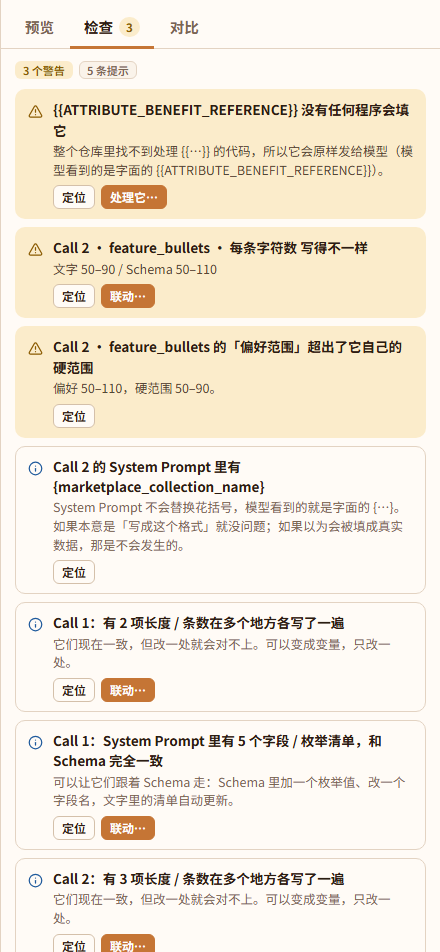
Checks. Each one has “Go to it”, and a fix button where it can be fixed automatically.
Everything that could be wrong, in three levels of severity; each has “Go to it”, and a fix button where it can be fixed automatically:
Errors (block the push)
The System Prompt is empty · the User Template uses a {slot} that is not in the Fact whitelist · the Call 2 User Template has no {content_plan} · the Schema or Validation is not valid JSON · a shared block is not found · a length variable is not defined · none of the Required Any Of Facts is on the Fact whitelist (the AI would never be called) · the Scope overlaps with another row of the same marketplace
Warnings
A {{ }} nobody fills · in the whitelist but not used by the template · lengths written differently in the three places · a field with no cell in the System Prompt · a Validation key the code does not recognise · Call 2 mentions a field Call 1 does not have · any other undefined variable
Notes
A {x} in the System Prompt that goes out as it is · hard-coded numbers that could be linked · the Marketplace option does not exist in Airtable yet
Diff
Diff: my version against what Airtable holds now, line by line.
My version against what Airtable holds now, line by line; a test prompt can also be switched to compare with the production prompt it was forked from. Edits someone made straight in Airtable show up here, and you can Pull in the Airtable version (dropping my unpushed changes) or Keep mine; the next push overwrites it.
08
Saving and conflicts
Drafts are stored in Supabase, so two people editing at once never silently overwrite each other.
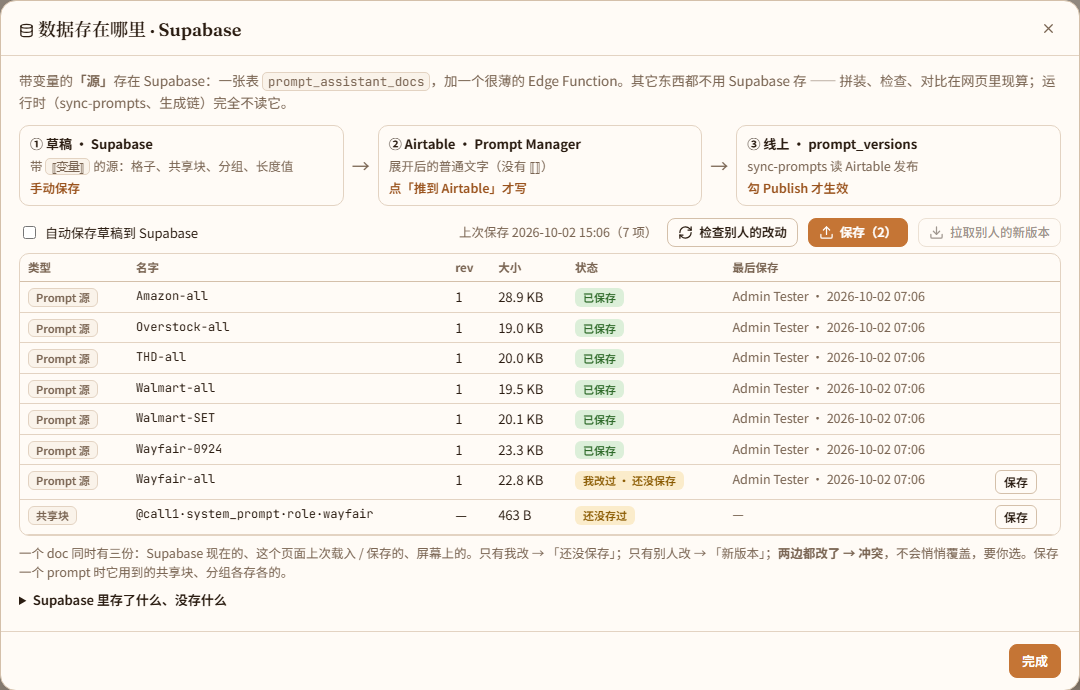
1The small bar in the header (Source saved in Supabase · rev N) shows the draft's save state: saved / unsaved (autosaving) / newer version in Supabase / source conflict. Click it to open “Where the data lives”.
2About a second after you stop editing it saves by itself. You can turn autosave off in the dialog and save by hand. A failed save says why, and can be retried.
3Every document (a prompt, a shared block, a group) exists in three copies at once: the one in Supabase now, the one this page last loaded or saved, and the one on screen. Only I changed it → “not saved yet”; only someone else changed it → “newer version”, click Pull; both changed it → conflict, nothing is overwritten, and you choose Pull (drop mine) or Keep mine.
4Prompts, shared blocks and groups that others create appear in your list by themselves the next time it checks.
After clicking the small bar in the header: the save state of every document, the autosave switch, pulling others' newer versions.
What is stored: each prompt's source (cells, variables, length values, the raw Schema, a snapshot of the text as of the last Airtable sync), shared blocks and groups. Not stored: assembled results, checks, previews and diffs (all computed in the page); the expanded text in Airtable (it belongs to Airtable); the history of published versions (still written only by sync-prompts).
09
Push and Publish
A push = writing the expanded text into Airtable. Publish is a separate thing and is off by default.
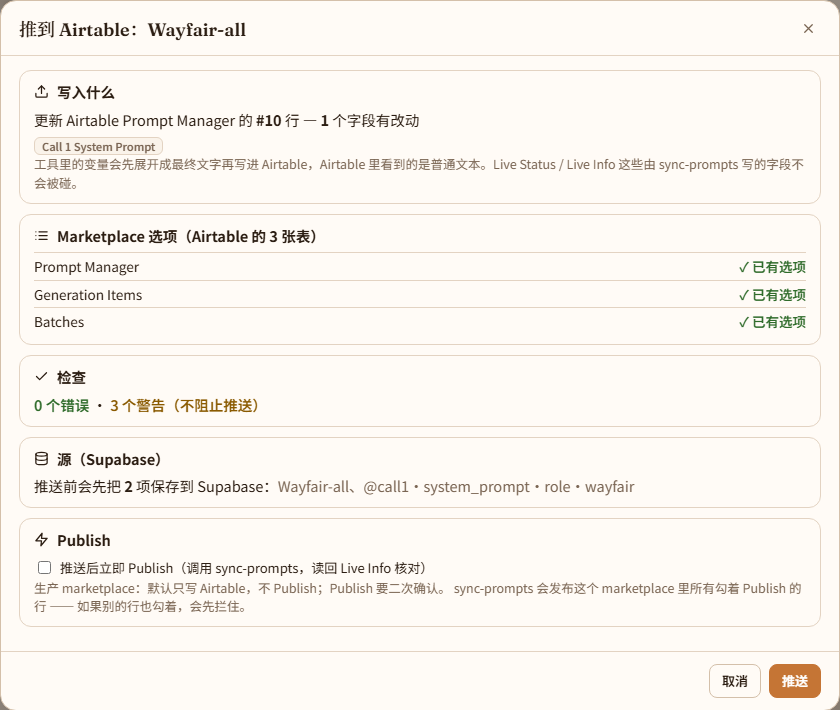
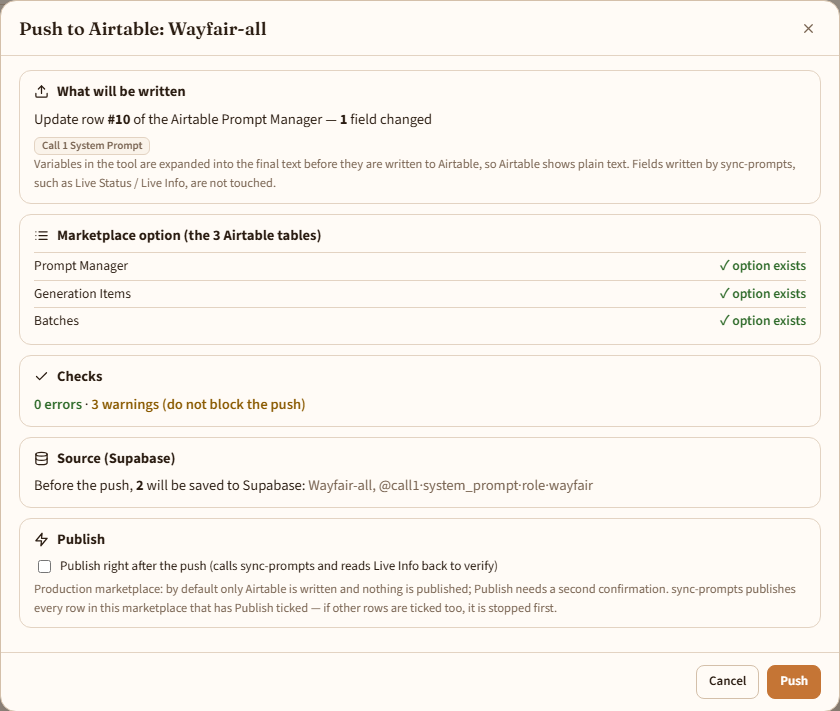
1Click Push to Airtable at the top right of the header. The page first reads this row in Airtable again (to see whether someone changed it) and then shows a confirmation page.
2The confirmation page tells you: · What will be written: a new row (Airtable assigns the Prompt Code), or an update of row #N, with the changed fields listed. Variables are expanded into the final text first. Only the input fields of the Prompt Manager are written; fields written by sync-prompts, such as Live Status / Live Info, are not touched. · Whether the Marketplace option exists (in the Prompt Manager / Generation Items / Batches tables); · Checks: errors block the push, warnings do not; · Source: anything unsaved is saved to Supabase first; if someone else has a newer version it stops; · Changed in Airtable: tick “I know this overwrites” or first Pull in the Airtable changes first.
3Publish = tick Publish on the row, run sync-prompts and read Live Info back to verify. A production marketplace by default only writes Airtable; ticking Publish also asks you to type the marketplace name to confirm; a test marketplace does it in one step by default. sync-prompts publishes every row in the marketplace that has Publish ticked; if other rows are ticked too, it stops first and lists them so their owners can deal with it.
4A new Marketplace option: the one in the Prompt Manager is created automatically when the row is written, provided the back end has AIRTABLE_SCHEMA_TOKEN configured. If not, add it by hand in Airtable once (type the new value into any cell and choose Create); a push is not possible while the option is missing. Options in Generation Items / Batches are made by “writing a temporary record and deleting it”, which you tick on the confirmation page.
The push confirmation page: what will be written, the Marketplace option, checks, the source in Supabase, Publish.
10
Testing and merging back
Do not touch production; try it in a test marketplace first.
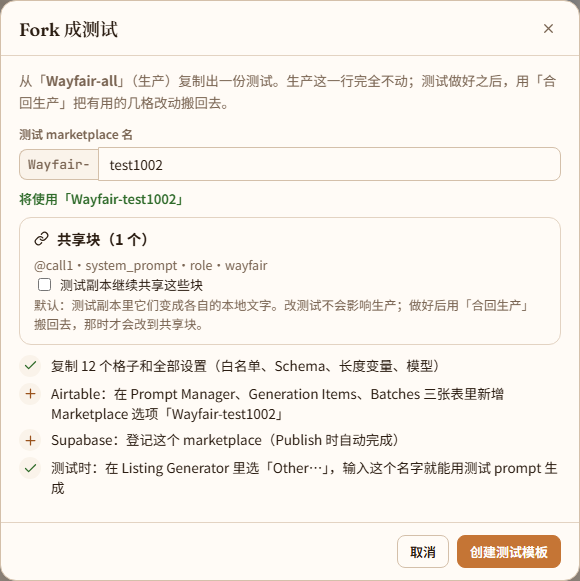
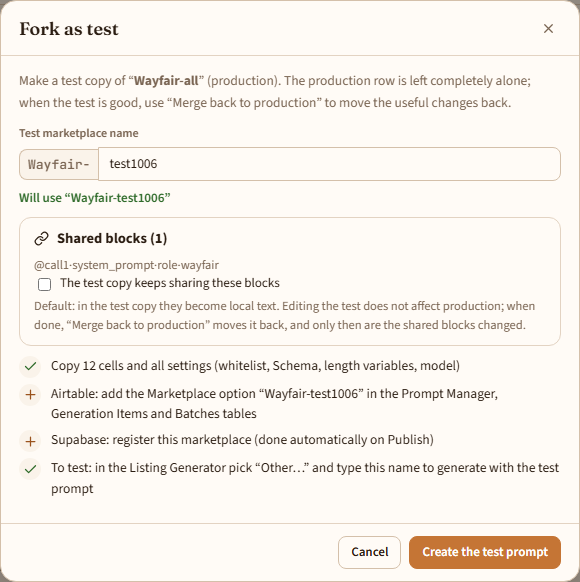
1On a production prompt click Fork as test and give a suffix (such as test0930 or your name). The test's Marketplace is “name-suffix”. It copies every cell and setting; shared blocks become local text by default, so editing the test does not affect production (tick “The test copy keeps sharing these blocks” to keep sharing, in which case editing a shared block in the test changes production too).
2The fork itself does not touch Airtable. Only the first time you push this test prompt is a row created in the Prompt Manager (along with the Marketplace option, if you have the permission).
3To try it: in the Listing Generator choose “Other…” as the Marketplace and type this test name; listings are then generated with the test prompt.
4When it is good, click Merge back to production on the test prompt: it lists the differences from the production prompt, you tick the changes to move back and click Apply to the production prompt. This only changes the production prompt in the tool; the production row in Airtable has not been touched. To make it take effect, open the production prompt, “Push to Airtable”, and Publish if needed.
Fork as test: give a suffix and see what will be done.
11
New, retire, delete
New
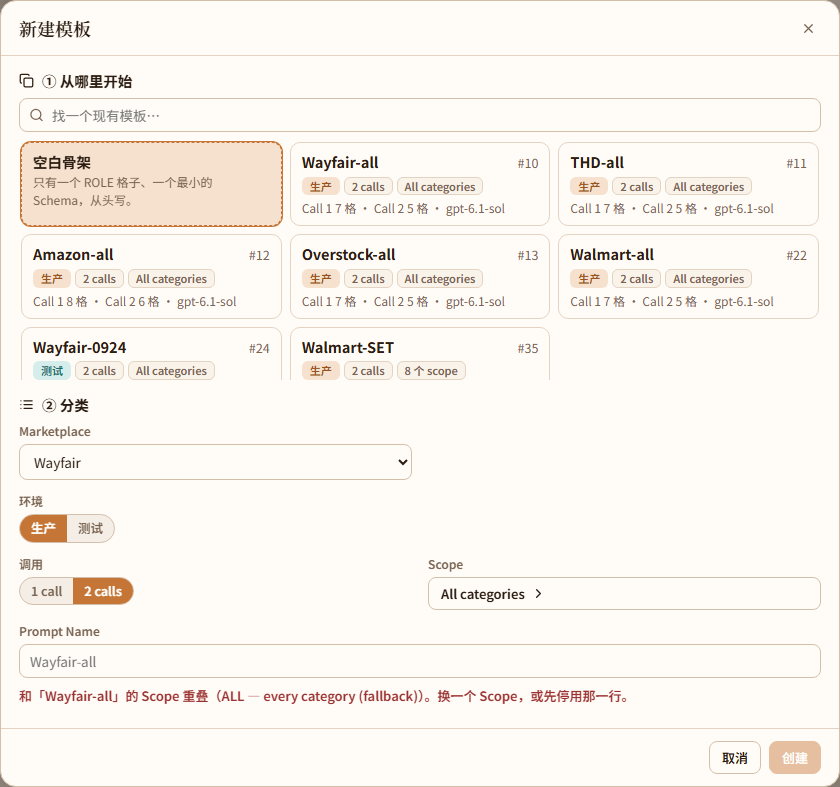
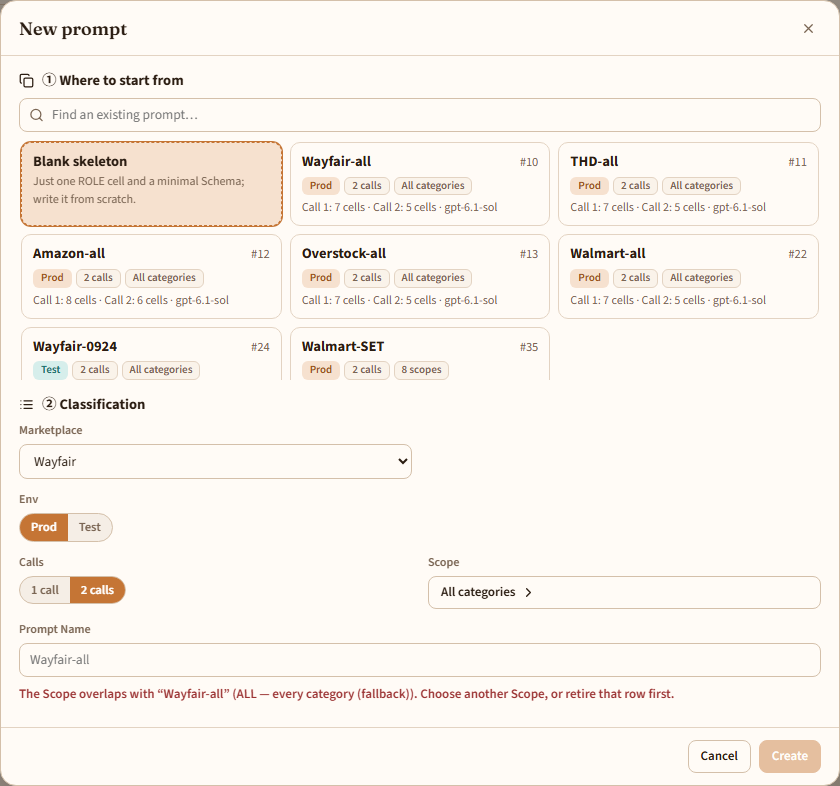
New prompt: first choose where to start from, then the classification.
New at the top left: ① where to start from: any existing prompt, or blank; ② classification: Marketplace (or a new Marketplace), Env (production / test; a test needs a suffix), 1 / 2 calls, Scope, Prompt Name. When copying from another marketplace's prompt you can tick to replace the marketplace name in the text too.
Until its first push a new prompt exists only in Supabase (a draft); the first push creates the row in Airtable. A new Marketplace is used as a custom name for now (like “Other…” in the Listing Generator); to become an official marketplace a developer also has to add it to supabase/functions/_shared/marketplaces.ts.
Delete: retire first, then confirm twice
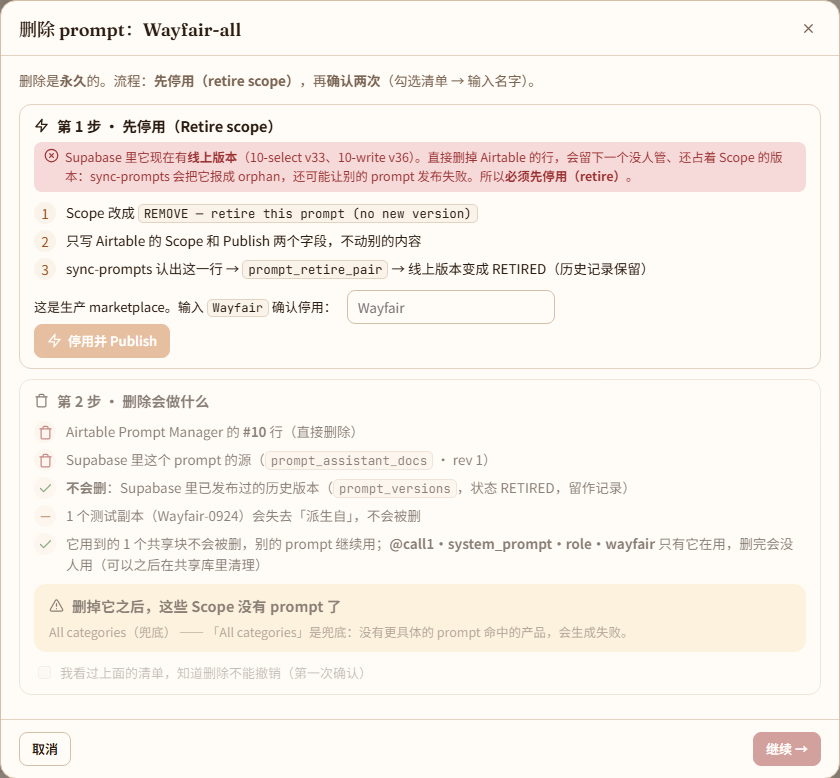
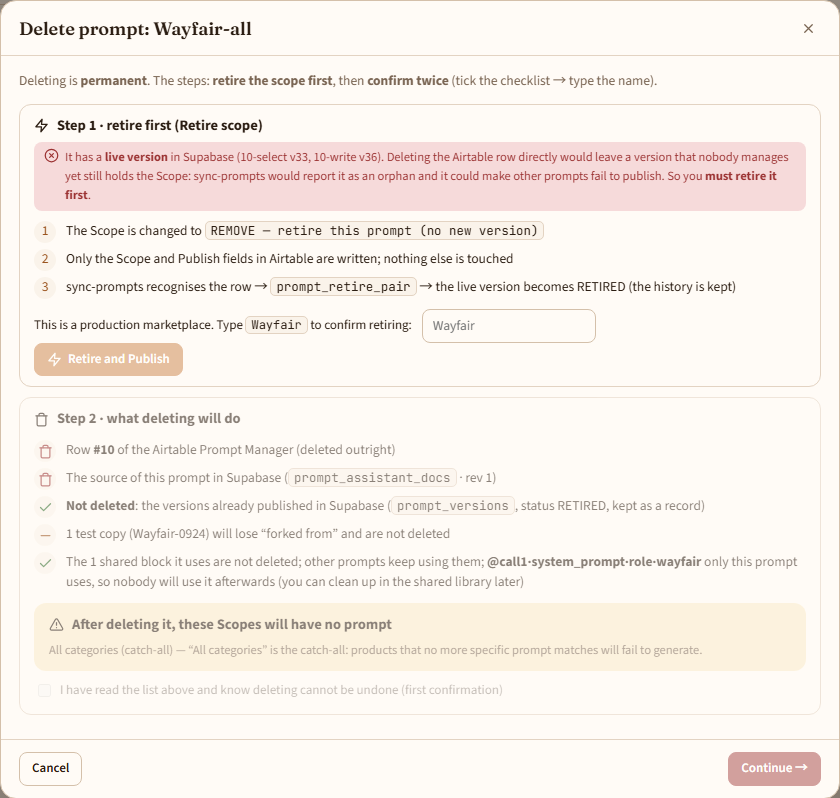
Delete: step 1 is to retire, step 2 to tick the checklist, then type the name to confirm.
1Retire first: if the prompt has a live version in Supabase, its Scope is changed to REMOVE — retire this prompt (no new version), only the Scope and Publish fields in Airtable are written, and sync-prompts recognises it and turns the live version into RETIRED (the history is kept). A production marketplace asks you to type the marketplace name to confirm. With no live version this step is not needed.
2The first confirmation: read the list and tick it. Deleted: this row in Airtable, the prompt's source in Supabase. Not deleted: versions already published (RETIRED, kept as a record); the shared blocks it uses; the test copies forked from it (they only lose “forked from”). It tells you which Scopes will have no prompt after the deletion. All categories is the catch-all; without it, products that no more specific prompt matches will fail to generate.
3The second confirmation: type this prompt's name and click Delete permanently.
Why you must retire first: deleting the Airtable row directly would leave a live version that nobody manages yet still holds the Scope; sync-prompts would report it as an orphan and it could make other prompts fail to publish. Whether there is a live version is decided by what is really live in Supabase, not by the text in Airtable.
If someone deleted the row in Airtable, the list marks it “No longer in Airtable”: pushing again creates a new row (with a new Prompt Code), or click Not needed — delete this prompt….
12
When something goes wrong
What you see
Cause and what to do
The top of the page says “Read-only” and the buttons are grey
Your account is an editor, which can only look. Ask an admin if something needs changing.
Opening the page only shows “This account cannot use Prompt Assistant”
Your account is a reviewer, or it was deactivated. Reviewers cannot use this tool; ask an admin.
“Your sign-in has expired”
Refresh the page and sign in again.
A push says “This field has edit permissions in Airtable”
The token the back end uses cannot write that field (the message names it). In Airtable open up that field's edit permission, or ask a developer for a token that has access.
A push is blocked: the Marketplace option is missing
The Airtable API cannot add options to a dropdown field, and the back end has no token that can create options. In the Airtable Prompt Manager add this option to Marketplace by hand (type the new value into any cell and choose Create), or ask a developer to set AIRTABLE_SCHEMA_TOKEN.
Publish is blocked: other rows in the same marketplace still have Publish ticked
sync-prompts would publish them too. Ask their owners to deal with it, or untick them in Airtable, then try again.
The state is “Changed in Airtable”
Someone edited this row directly in Airtable. Look at “Diff” on the right, then pull it in, or keep mine and let the next push overwrite it.
The state is “Source conflict”
You and someone else changed the same draft. Click the small bar in the header and choose “Pull” or “Keep mine” for each.
The push says there are errors
Click “Go to it” or the fix button under “Checks” on the right, and push once there are no errors.
A prompt in Airtable looks like a mess
What is pushed is the expanded plain text. If a literal ⟦…⟧ shows up in it, a variable is not defined; the Checks page reports it, so fix it and push again.